

There are plenty of guides available that demonstrate how to set up an RDS instance, so we won’t delve into that here.
The primary aim of this article is to clarify how to configure logging and enable certain features on an RDS instance. These features are typically enabled by default for the root user on an on-premise MySQL database but require additional steps on RDS.
Why RDS Doesn’t Let You Use Certain Features by Default
By default, RDS does not grant superuser privileges (GRANT ALL) to any of the users you create — not even the admin user.
So, if you try to create a MySQL function like this:
CREATE FUNCTION `TESTFUNCTION`(s TEXT, defaultValue TEXT) RETURNS TEXT CHARSET latin1 DETERMINISTIC RETURN IF(s IS NULL OR s = ‘’, defaultValue, s);
RDS will block it. This is a security feature. If an unauthorized user gains access, they won’t be able to tamper with sensitive functions.
How to Enable Function Creation in RDS
To enable administrative tasks (like creating a function), follow these steps:
- Go to the RDS > Parameter Groups section.
- Create a new parameter group.
- Set
log_bin_trust_function_creators = 1. - Associate this group with your RDS instance via the Edit section.
IMPORTANT: Make sure the parameter group family matches the MySQL version of your RDS instance. Otherwise, you won’t be able to assign it.
Once applied, you’ll be able to create the function.
Enabling Detailed Logging in RDS
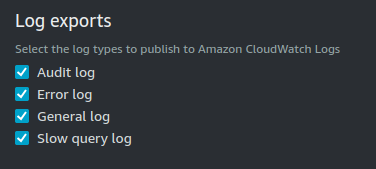
Just checking the logging options during instance creation won’t fully enable logs.
It only enables the capability to publish logs — not the logs themselves. By default, only error logs are active.
How to Enable Audit Logging
To activate audit logging:
- Create a new Option Group. The default one cannot be edited.
- Go to Database Options, choose your new group.
- Add the
MARIADB_AUDIT_PLUGINwith default parameters. You can customize things like file rotation later. - Click Add Option.
- Assign the group to your instance.
Once it’s active, you’ll find an audit.log file under the Logs & Events tab of your instance.
Enabling Slow and General Query Logs
- Create or edit a custom Parameter Group.
- Set:
slow_query_log = 1long_query_time = 5log_output = file
This setup logs queries that take over 5 seconds and stores them in a separate file — which helps avoid performance issues.
If you don’t do this, logs are stored inside the database, which you’d have to query to access.
To enable general logging too, just set general_log = 1.
IMPORTANT: A restart is required for changes in the parameter group to take effect.
— — — — — — — — — — — — — — — — — — — — — — — — — — — — — — — — — — — — — — — — — — — — — — — — — — — —
Struggling with advanced RDS configuration? Let us handle the complexity and help your application run like a dream.
Explore our services and reach out today — we’re here to make it easy!
— — — — — — — — — — — — — — — — — — — — — — — — — — — — — — — — — — — — — — — — — — — — — — — — — — — —
ARTICLE DEFINITIONS:
– Parameter Group:
A Parameter Group is a collection of database engine configuration settings and parameters that you can apply to one or more RDS database instances. It allows you to customize various aspects of your database, such as memory allocation, query behavior, and more, to meet your specific application requirements.
– Option Group:
An Option Group is a collection of database features and functionalities that you can enable or disable for your RDS database instance. It allows you to add capabilities like encryption, automated backups, and high availability to your database, tailoring it to your application’s requirements.
– Audit Log:
An Audit Log, also known as the Database Audit Log, is a record of actions and events that occur within your RDS database instance. It helps you track who accessed the database, what operations were performed, and when they occurred. This log is essential for security and compliance purposes.
– Error Log:
The Error Log is a file that captures information about errors and issues encountered by your RDS database. It can include details about database errors, crashes, and other anomalies. Reviewing the error log helps administrators diagnose and troubleshoot problems in the database.
– Slow Query Log:
The Slow Query Log is a record of database queries that take a longer time to execute than a specified threshold. It helps identify and optimize inefficient or resource-intensive database queries, improving the overall performance of your database.